 Zema
ZemaContents
The Zema guide
Zema is free worship presentation software for Amharic and Tigrinya churches. This guide covers installing it, preparing songs and Bible passages, and running the screens on Sunday. New here? Read Install Zema and Your first service, and look up the rest when you need it.
Updated
Nothing in the guide matches your search. Try fewer or other words.
Install Zema
Zema runs on the computer that drives your projector: a Windows 10 or 11 PC, or a Mac with macOS 11 (Big Sur) or newer – Apple Silicon or Intel. Download it here; the download wizard picks the right file and walks you through the steps below.
Windows
- Open Zema-Setup.exe from your Downloads folder.
- If Windows says Windows protected your PC, click More info, then Run anyway. Windows asks because Zema isn't signed with a paid certificate yet.
- Follow the setup: pick a language, keep Install for me only, click Next past the folder, choose whether you want a desktop shortcut, then Install. No administrator password is needed. If Microsoft Edge WebView2 is missing – rare, it is part of Windows – the setup adds it.
- Zema starts. You find it in the Start menu (right-click it → Pin to taskbar) and, if you chose it, on the desktop. To remove it: Settings → Apps → Zema → Uninstall. Your songs stay.
Mac
- Open Zema-macOS.dmg and drag Zema onto Applications.
- Open Zema from Applications. The first time, macOS says it can't check the app:
- macOS 15 Sequoia or newer: press Done, open System Settings → Privacy & Security, scroll down and click Open Anyway next to “Zema”, then confirm.
- macOS 11–14: Control-click (right-click) Zema in Applications, choose Open, then Open.
- When macOS asks whether Zema may find devices on your local network, click Allow – that is how phones and the stage display connect.
Linux or a server
Zema also runs in Docker, in browser mode: the console and the screens are web pages you open in a browser. Ask whoever looks after your computers to follow the developer instructions that come with Zema (docker compose up -d).
Install Zema on as many computers as you like – the church computer, the worship leader's laptop, the media team's PCs. To work on the same songs, share the library through Google Drive.
The console
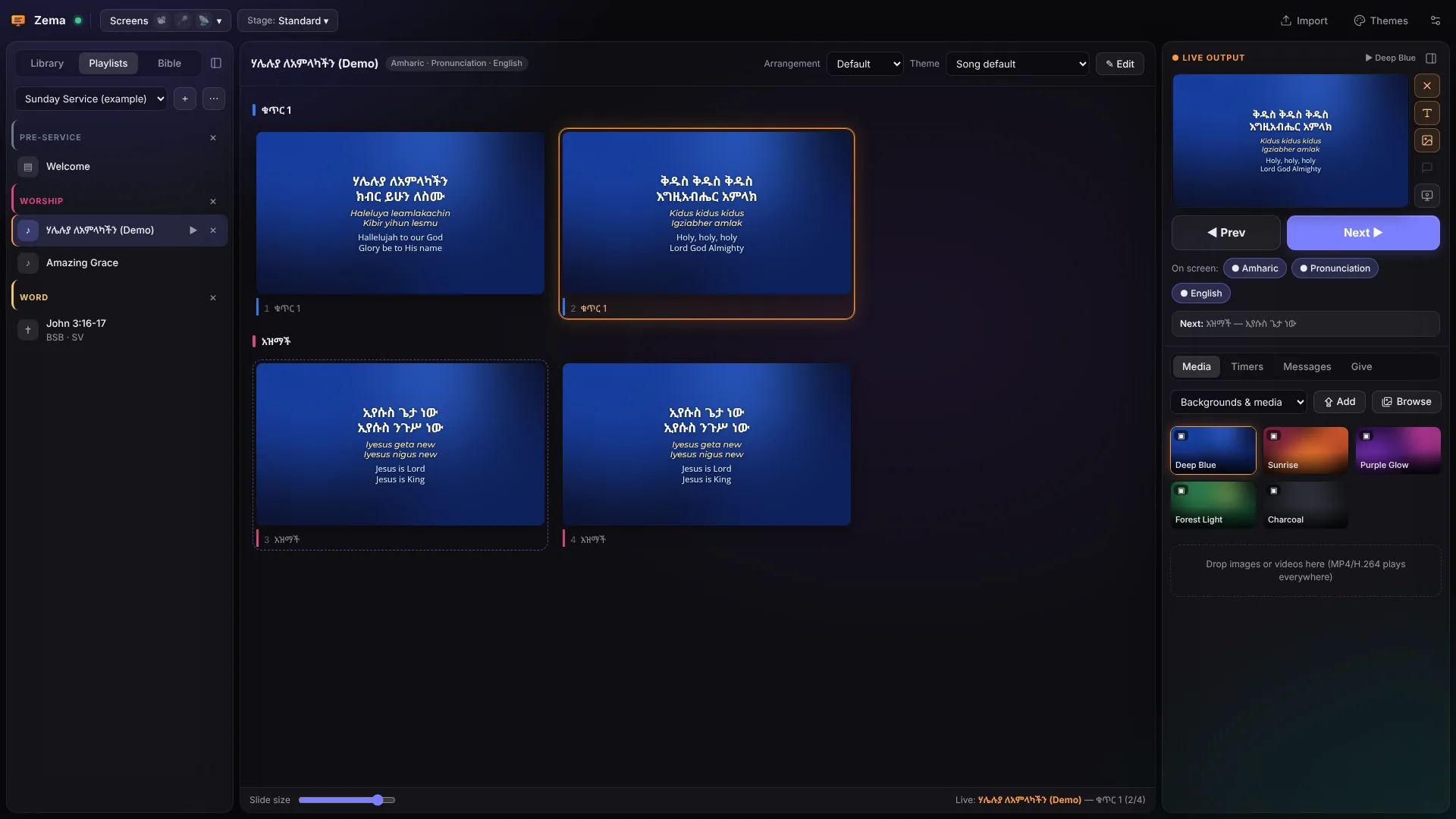
- Left – Library, Playlists, Bible. All songs and slide presentations, your service playlists, and the Bible.
- Middle – the slides. The slides of whatever you selected, in sections (Verse 1, Chorus…). Click a slide to put it on the screens.
- Right – Live output. What the audience sees right now, Prev and Next, the clear buttons beside it, and tabs for Media, Timers, Messages and Give.
- Top – Screens, the stage layout, Import, Themes and Settings (the sliders icon).
Drag the gap beside a sidebar to make it wider, or fold it into a slim icon bar with [ and ]. Almost everything has a right-click menu – and every change can be undone from the message at the bottom for a few seconds.
Connect your screens
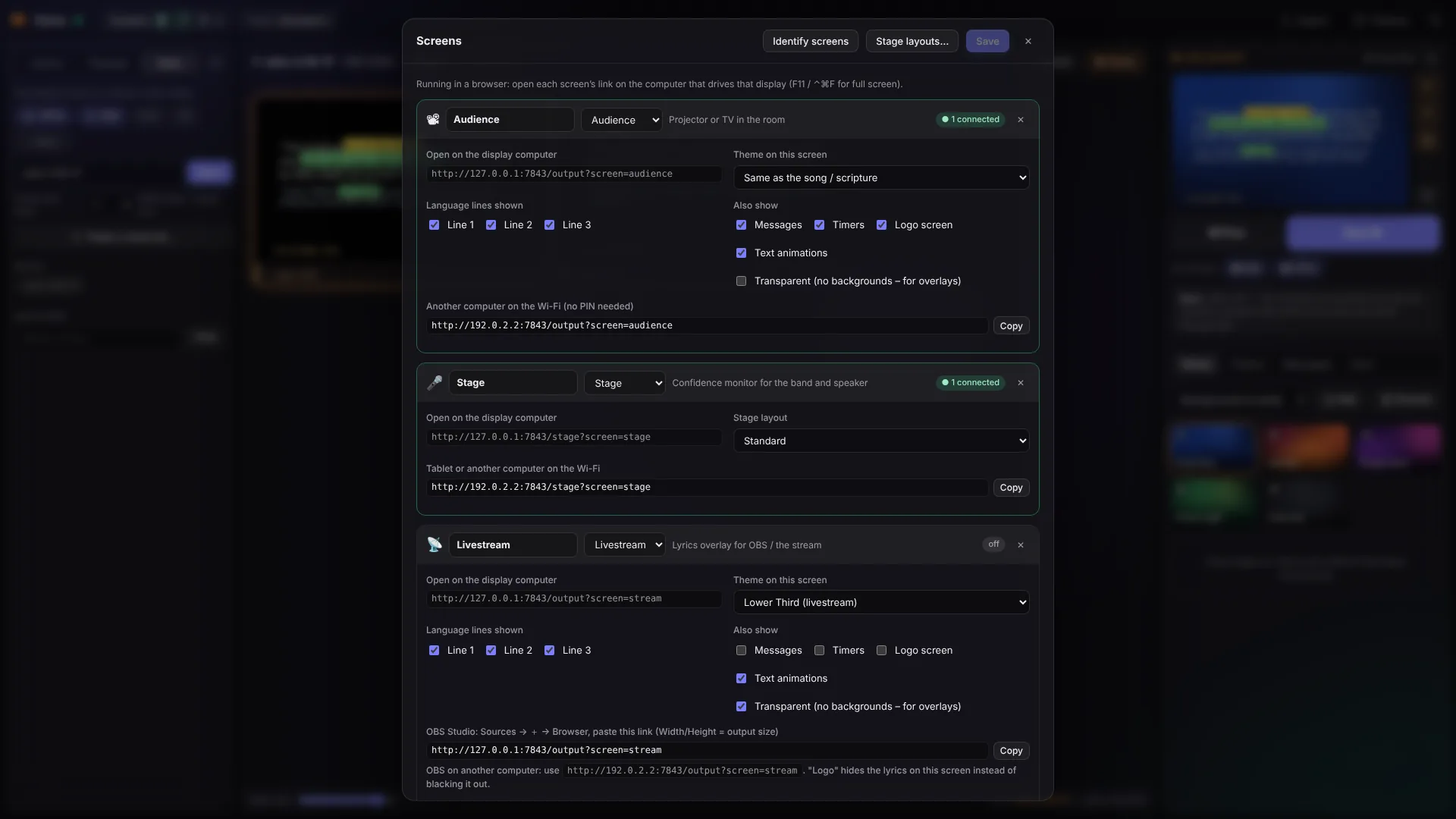
Connect the projector (and a stage monitor, if you have one) as extended displays – not mirrored. Then click Screens at the top:
- For Audience, choose the projector under Show on. For Stage, choose the monitor for the band and the speaker.
- Identify screens flashes each screen's name, so you can tell the displays apart.
- Zema remembers your choice and opens the screens by itself next time. Just testing on one screen? Choose Movable window.
Each screen can have its own theme and its own language lines – all three languages in the room, but only Amharic and English on the livestream, for example. Add more screens with +: a TV in the lobby, a second stage monitor. A screen without its own display can be opened in any browser with its link – a laptop at the sound desk, a TV with a browser, OBS.
Your first service
Zema starts with a few example songs and a playlist, Sunday Service (example). Try it before you make your own:
- Open Playlists on the left and click the first song (under the Welcome slides). Its slides appear in the middle.
- Click a slide: it is on the screens, with an orange frame. Press → or Space for the next slide, ← for the previous one. At the end of a song, Next goes on to the next item of the playlist.
- Put a background behind it: click a picture in the Media tab on the right.
- Clear the screen with F1, or only the text with F2. F5 shows your logo (or black).
- Make your own playlist with + next to the playlist menu, then add songs with + next to a song in the Library (or + Playlist above its slides).
Most presentation clickers send Page Up/Page Down or the arrow keys, so they work with Zema straight away.
Songs
Click + New → New song. The editor opens on the Reflow tab, where you write a song as text – one column per language.
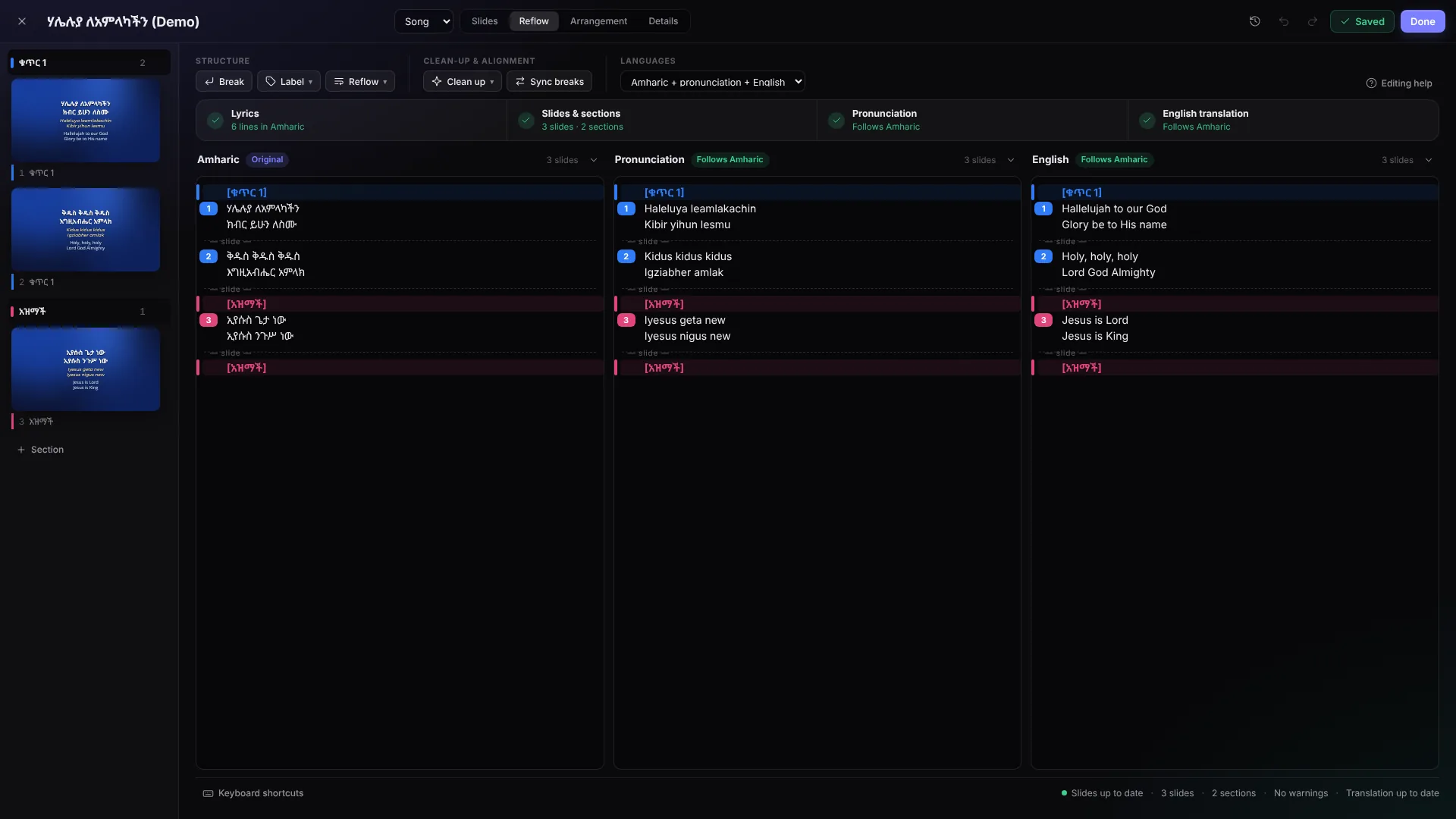
- Type the title at the top. Under Languages choose a preset, for example Amharic + pronunciation + English.
- Type or paste the lyrics into the first column. A blank line starts a new slide;
[Verse 1],Chorus:or[አዝማች]starts a section. The slides on the left update as you type. - The empty columns offer what they can do: Generate pronunciation (free) and ✨ Translate, or Type it yourself.
- Press Done to save and close (⌘S / Ctrl+S saves and keeps it open).
Tools in Reflow
- Break (or Shift+Enter) puts a slide break at the cursor; Label adds a section (⌘L inserts the next verse).
- Reflow re-breaks every section into slides of 1 to 6 lines, or makes one slide per section.
- Clean up fixes capitals, trailing commas, ALL CAPS and line numbers; Sync breaks gives the other columns the same sections and breaks as the first.
- The row of steps – Lyrics, Slides & sections, Pronunciation, Translation – shows what still needs a look. The bar at the bottom counts slides and warnings.
Arrangements
On the Arrangement tab you set the order you sing it in – for example Verse 1, Chorus, Verse 2, Chorus, Bridge, Chorus – without copying slides. A song can have several arrangements; the playlist remembers which one to use.
Paste a song
Found the lyrics on WikiMezmur, another website, in a PDF or a WhatsApp message? Select and copy them (on a web page you can copy the whole page with ⌘A), then in Zema press ⌘V / Ctrl+V anywhere outside a text field – or use + New → Paste song…. Zema:
- leaves out the website text around the lyrics and reads the title and the singer when the page shows them;
- finds the chorus (አዝማች, አዝ, ተቀባይ, Chorus) and the verses, and turns “አዝ…” after a verse into a repeat of the chorus;
- removes repeat marks (
x2,(2x),2 ጊዜ), replaces the ፡ separators with spaces and splits long verses into slides of up to 4 lines; - recognises Amharic or Tigrinya and adds the pronunciation – and, if you like, an English or Dutch translation.
Check the lyrics, then Open in the song editor and Save. A progress window shows each step while Zema prepares the song; Skip the translation opens it straight away.
Paste one song at a time – WikiMezmur doesn't allow automated downloading, and Zema credits it on the last slide as the site asks. The lyrics belong to the artists: a church licence such as CCLI, or the artist's permission, covers showing them in services.
Pronunciation & translation
Pronunciation
For Amharic and Tigrinya, Zema writes the Latin-script pronunciation from the Ge'ez text (ኢየሱስ ክርስቶስ → Iyesus Kiristos) – free and offline. Edit it like any other text.
Setting up translation
In Settings → Translation choose one of:
- Church code – if someone runs a translation service for several churches, they give you a code (
zt1_…). Paste it; your church needs no account of its own. - Claude with your own API key – create a key at console.anthropic.com. A song costs about half a cent to a cent.
- Local model (Ollama) – free and offline, but weaker for Amharic and Tigrinya.
Press Test to check it. Then a column set to a language – English, Dutch, French, German… – has a ✨ Translate button: it translates slide by slide and line by line, so the translation lines up with the original. Read every translation before a service – machines miss things.
Translate once, then just edit
Once a column has its translation or pronunciation, it follows the first column: add sections, move slide breaks or repeat the chorus in the Amharic, and the other columns get the same layout – nothing is translated again. A new line gets a placeholder (~, never shown on screen) and a changed line is underlined in orange; ✨ Translate N lines translates just those.
Sung sounds without meaning – ኦ ኦ, ኣሃ, ዬ ዬ – are left out of the translation, so the English never says “Oh” or “Yee”. Real words and real repetition stay.
The slide editor
✎ Edit (or double-click a slide) opens the editor full screen: the slides on the left, the slide in the middle and its settings on the right.
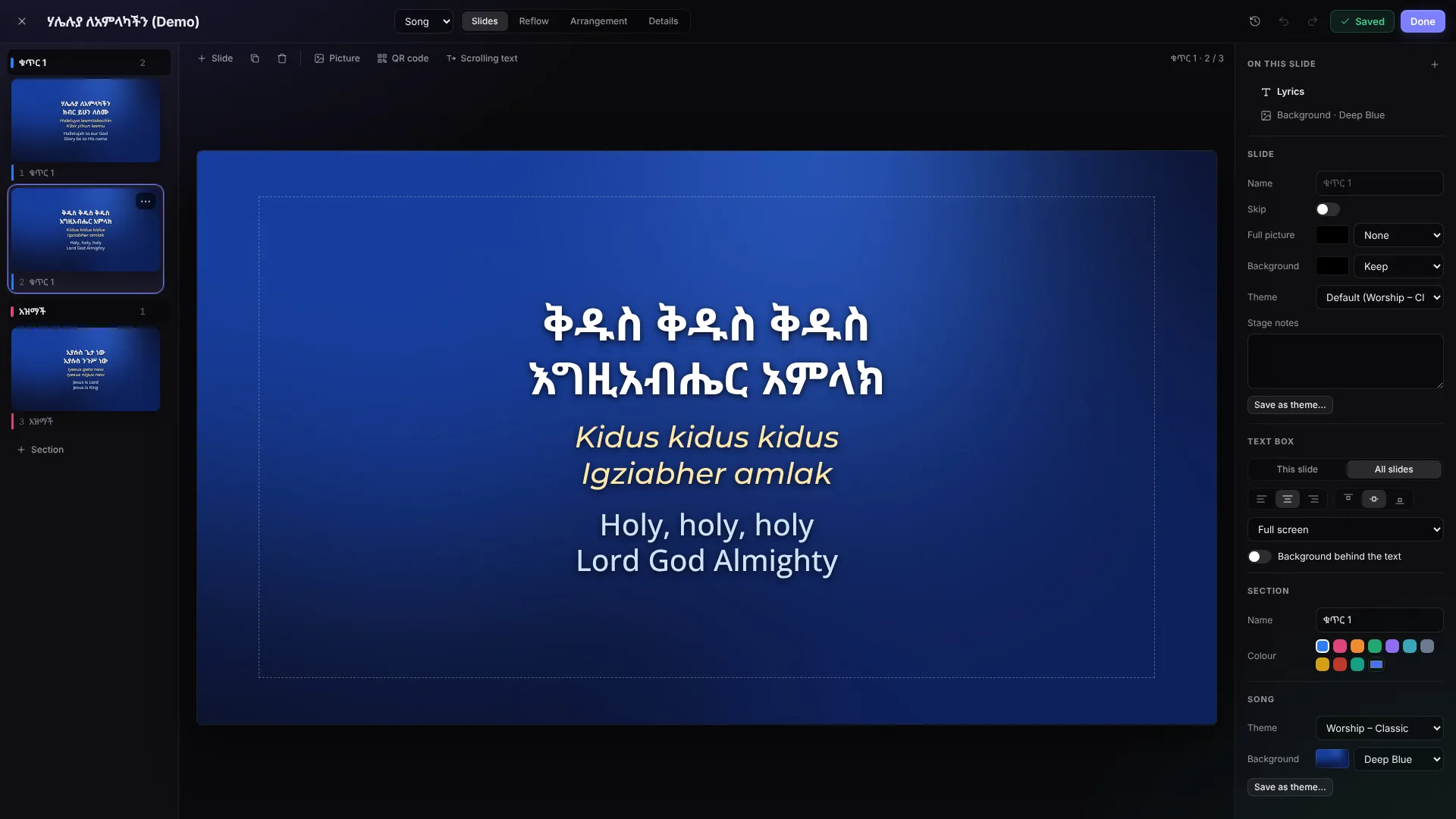
- Type straight on the slide. Each language is its own text. ⌘↵ / Ctrl+Enter splits the slide at the cursor, Esc stops typing.
- The text box. Drag its edge to move it, its handles to resize it, or choose a position and alignment on the right. This slide or All slides decides what changes.
- Background behind the text. Under Text box: a solid colour right behind the letters, like a label – a band behind each line, or one block. Bold capitals on a black band give the poster look.
- Pictures, GIFs and videos. Picture opens the media library – or drop a file straight on the slide, or paste a copied picture. Drag a corner to resize (it keeps its shape). GIFs play on the screens; videos play muted, on a loop.
- QR codes. QR code puts one in the corner, big enough to scan from the back: of a giving link or of any web address (a sign-up form, the livestream).
- Scrolling text. One huge row of outlined text that scrolls endlessly – WORSHIP • ኣምልኮ – in front of or behind the lyrics.
- On this slide lists everything on the slide; drag to change the order, the eye hides one. Add to theme puts a logo or QR code on every slide that uses the theme.
- Save as theme… keeps the look of a slide or the whole song as a theme for later.
⌘Z undoes, ⇧⌘Z redoes; Done saves and closes. Every save keeps the earlier version in the history.
The Bible
In the Bible tab, choose up to three translations – the order you click them is the order on screen. Type a reference and press Enter; Shift+Enter shows it straight away. + Playlist adds the passage to the service.
References work in English, Dutch and Amharic, short or long, in any translation: John 3:16, Jn 3:16, Johannes 3:16, ዮሐንስ 3:16, የዮሐንስ ወንጌል 3:16, 1ኛ ቆሮ 13:4-8. Search finds verses by their words.
Included Bibles
- አማ54 – the 1962 Amharic Bible (1954 E.C.). Where it prints two verses as one, the slide shows them as one verse numbered “14-15”. Its copyright line is shown on scripture slides, as the Bible Society of Ethiopia asks.
- BSB (Berean Standard Bible), KJV (King James Version) and SV (Statenvertaling).
To add a Tigrinya (or any other) Bible you are licensed to use, choose + More… and import a Zefania, OSIS, USFX, VPL, CSV or JSON file.
Highlights & verse lists
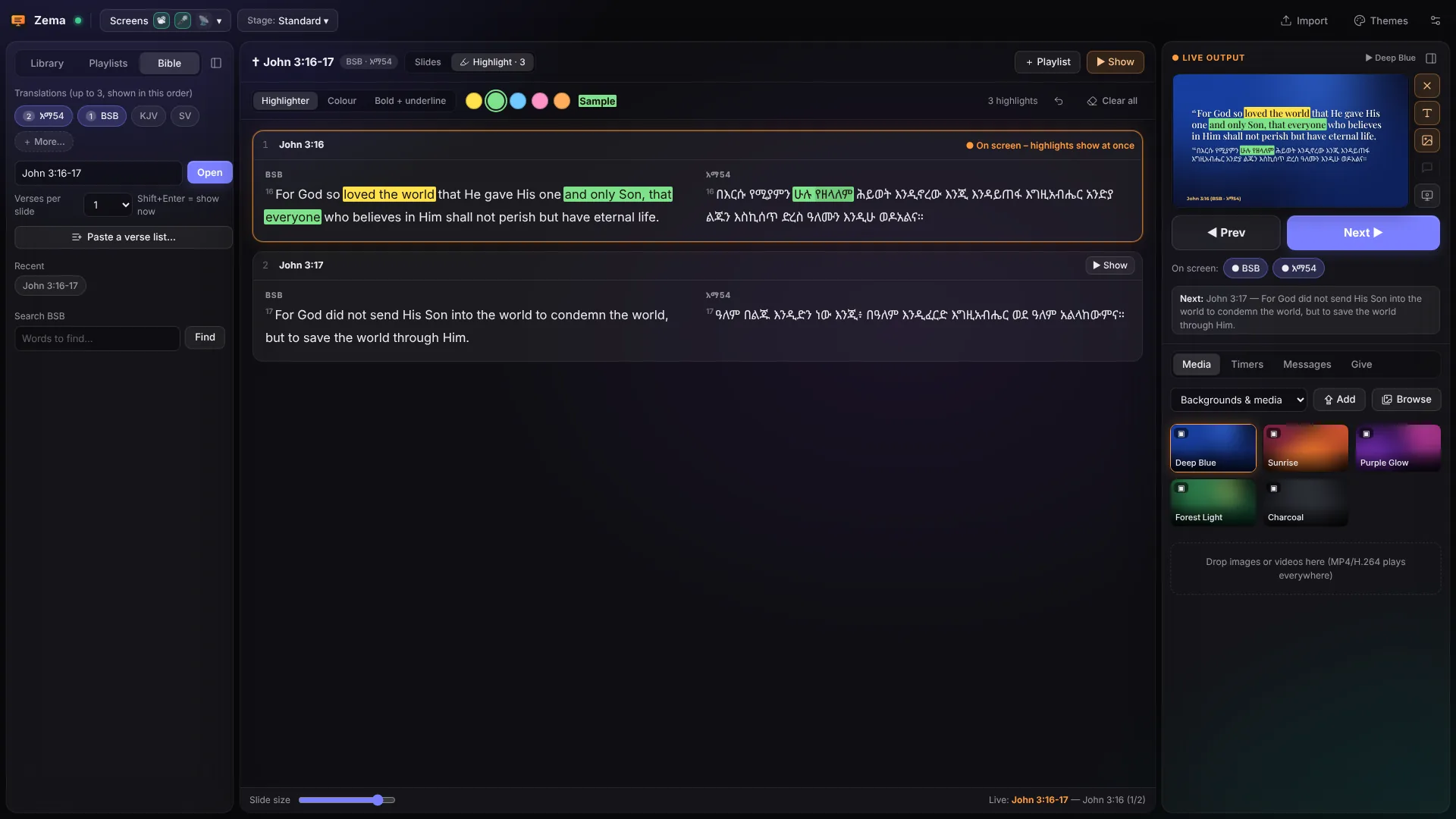
Highlighting words
Open a passage – or select one in the playlist – and choose Highlight at the top. The passage is shown as text, slide by slide, each translation in its own column.
- Drag across words to highlight them (also across verses). Click a highlight to take it away; right-click it for another colour or style. ⌘Z undoes.
- The pen: Highlighter (a marker behind the words), Colour (the words in that colour) or Bold + underline – in yellow, green, blue, pink or orange.
- Preparing: highlights of a passage in a playlist are saved with it.
- Live: press ▶ Show on a slide (its card turns orange). Words you highlight now appear on the screens at once, drawn in like a pen stroke – and on the stage display.
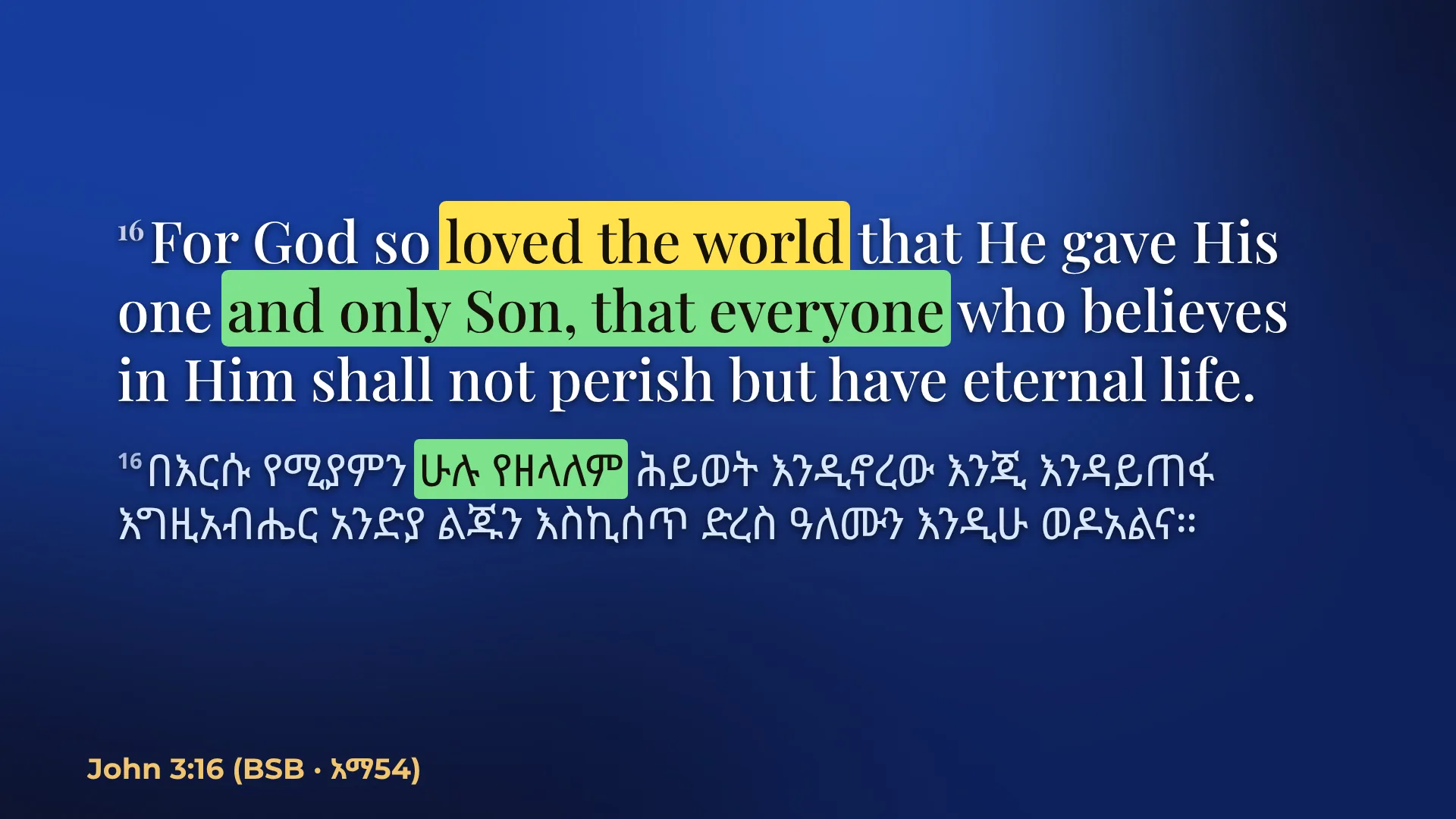
A verse list for the sermon
Paste a verse list… in the Bible tab takes the references from the sermon notes – one per line, or several on a line with ; or ,. Bullets, numbers, “(NIV)” and a note after a dash are left out. Each reference is checked as you type; a first line that isn't a reference (Sermon: Saved by grace) becomes the header. Choose the playlist and press Add: every passage becomes its own playlist item, ready to click – and to highlight beforehand.
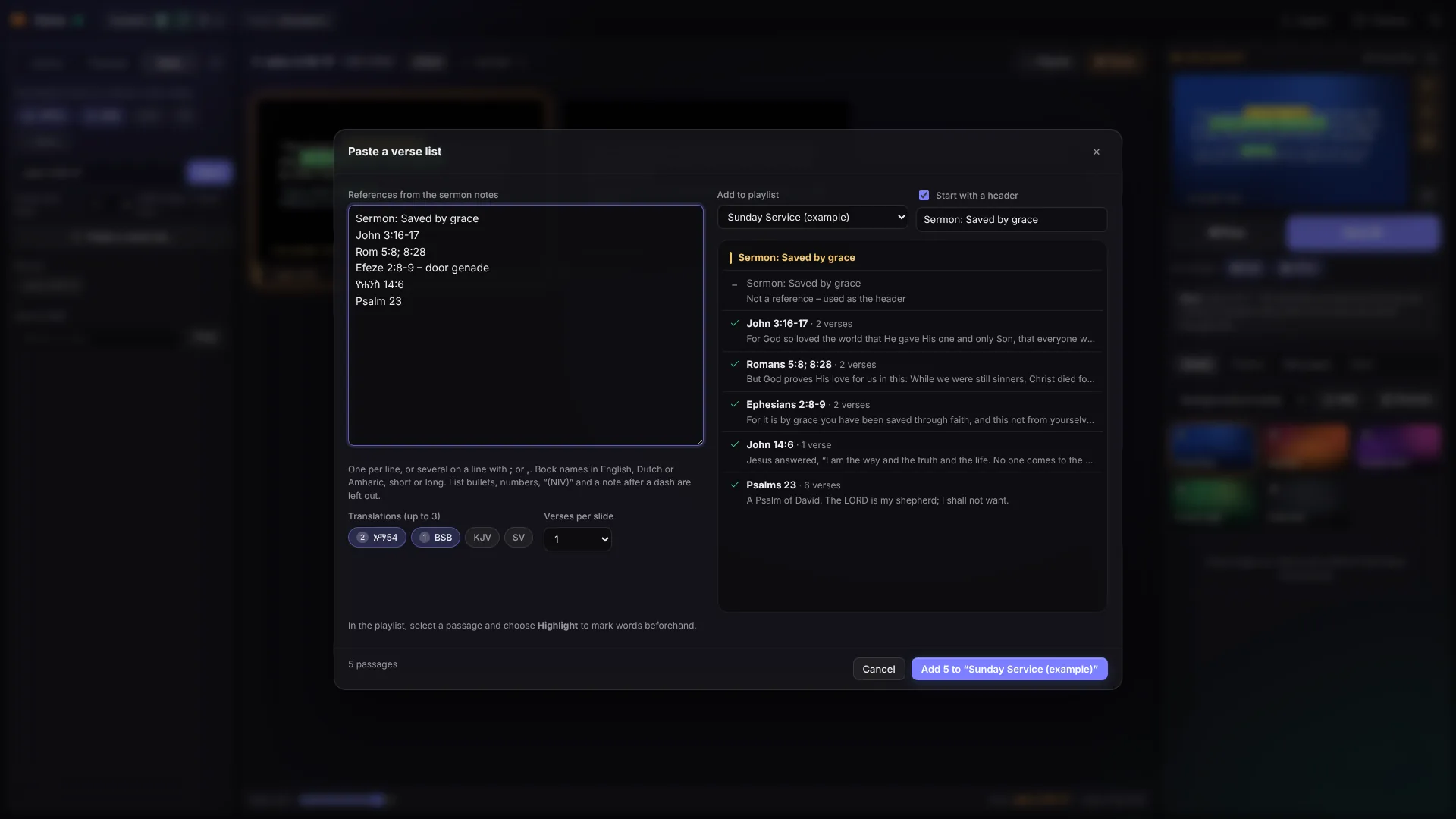
Media & backgrounds
Drop pictures or videos onto the Media tab on the right and click one to put it behind the lyrics. Videos can loop and play with or without sound; MP4 (H.264) plays on every computer. Five starter backgrounds are included.
Browse opens the media library: folders on the left (drag a picture onto a folder to move it), search, and Pictures / GIFs / Videos. Drop or paste files anywhere in the window. Right-click a picture to rename, move or delete it – deleted media stays in Recently deleted for 30 days.
Themes & animations
Themes (at the top) sets the look: fonts, sizes and colours per language line, shadow and outline, the background behind the text, the theme background and the text box. Drag the text box right on the preview; it snaps to the centre and to the safe margin every projector shows. Text shrinks by itself to fit.
Text animations
For announcements and the welcome page, text can build in as a whole, line by line, word by word or letter by letter – rise, blur, pop, typewriter and more – and keep gently moving. Set it on a theme, on a presentation (Edit → Details) or on one slide. Song lyrics and scripture never animate; they simply fade.
The fade between lyrics slides is in Settings → Output & transitions → Lyrics (songs).
PowerPoint, PDF & Canva
- Import → PowerPoint. Exact look makes every slide a picture (needs LibreOffice, Keynote on a Mac, or PowerPoint on Windows); Editable takes the text and pictures and styles them with a Zema theme.
- PDF – from Keynote or anywhere else.
- Google Slides – set the presentation to Anyone with the link, then paste the link.
- Canva – connect Canva once (the steps are in Import → Canva), then browse your designs inside Zema and import them as pictures, editable text, or animated. When a design changes in Canva, ↻ Update brings the new version.
Going live
Click a slide to put it on the screens. The live slide has an orange frame; the next one a dashed frame. Beside the live preview, a strip of icons clears what is on the screens:
| Key | What it does |
|---|---|
| → ↓ Space Page Down | Next slide (at the end of an item: the next item in the playlist) |
| ← ↑ Page Up | Previous slide |
| 1 – 9 | Jump to slide 1–9 |
| F1 | Clear everything |
| F2 / F3 | Clear the text / the background |
| F4 | Hide the message |
| F5 B . | Logo (or black) screen |
Under the preview, On screen switches a language line off and on live – handy when the pronunciation isn't needed for one song.
On a Mac laptop, hold fn for F1–F5.
The playlist
Add songs, Bible passages and media with their + button (or right-click → Add to playlist); media can also be dragged from the right into the playlist. Add headers such as Worship, Word and Offering (⋯ → Add header…). Drag items to reorder them; right-click for more. During the service, Next continues from the end of one item into the next.
A playlist item can have its own theme or arrangement – choose it at the top of the slides when the item is selected.
Giving by QR code
- In your banking app make a Betaalverzoek (ING, Rabobank, ABN AMRO / Tikkie, bunq, SNS…) – if you can, one where people choose the amount – and copy its link.
- In Settings → Giving press Add a giving link and paste it (the whole message from the app is fine). Give it a name for the screen (Collecte, Bouwfonds) and the date it is valid until.
- In the Give tab on the right: Show slide shows a full-screen Give slide; Corner QR shows a smaller code in the corner over the lyrics, until you press it again or F1.
Zema reminds you a week before a link stops working. A QR code on a slide that uses a giving link changes along when you paste a new link.
Messages & timers
- Messages tab: a banner for the audience (“Parents of child #12…”), and a private stage message only the band and the speaker see (“Repeat chorus”, “5 minutes”). Save messages you use often.
- Timers tab: countdowns (for a duration or to a time of day) and stopwatches. They show on the stage display; Screen puts one on the projector too.
Stage display
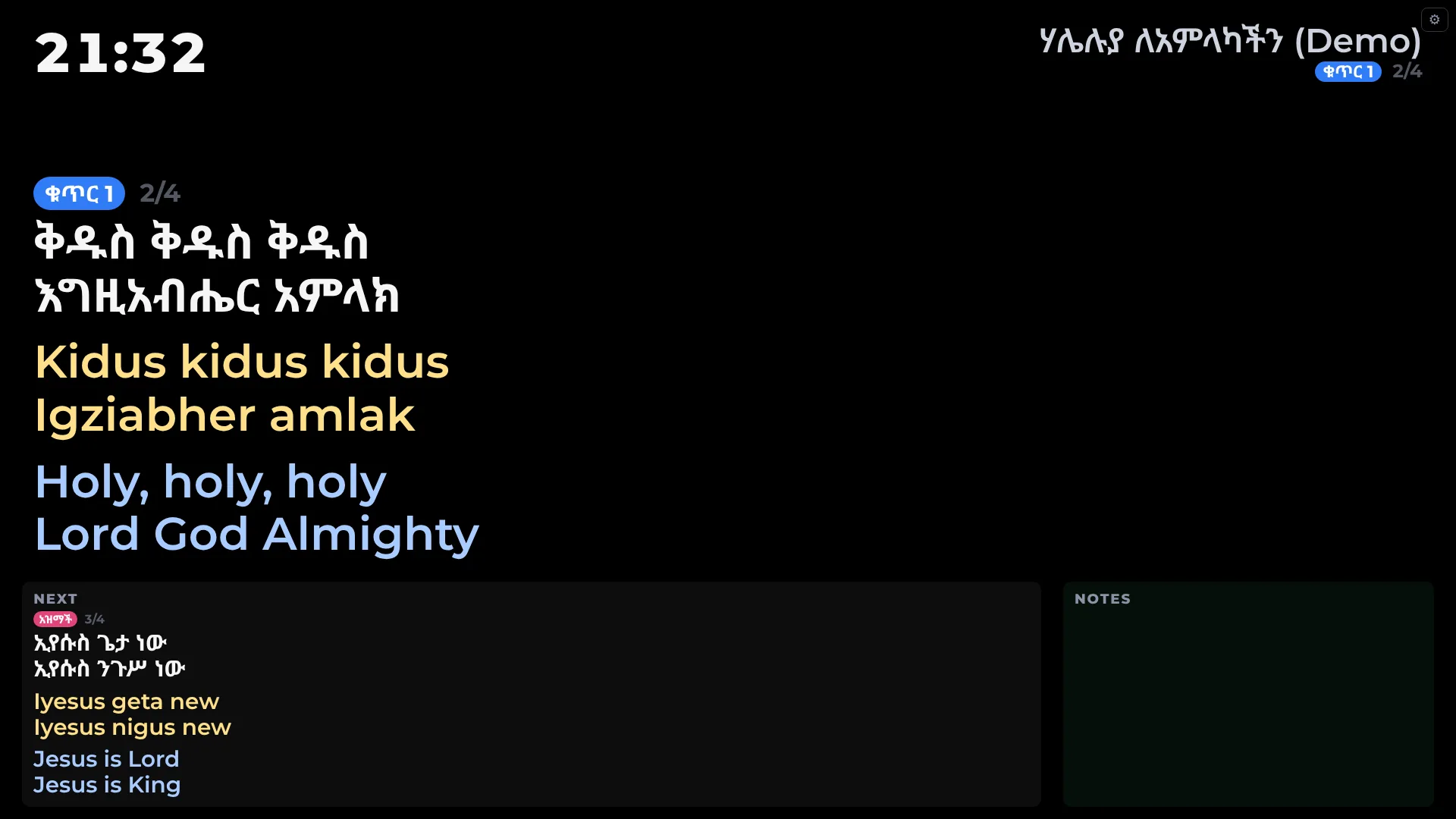
The stage display shows the band and the speaker what is on screen and what comes next, with a clock, countdowns, notes and stage messages. Four ready-made layouts – Standard, Lyrics only, Speaker and Countdown – switch live from the Stage: menu at the top.
Screens → Stage layouts… designs your own: drag blocks (current and next slide, clock, countdown, timers, stage message, notes, song position, audience preview, text) wherever you like. A tablet on stage can open the stage display in its browser and choose its own layout with ⚙.
Phone remote
In Settings → Remote & livestream, scan the QR code with a phone on the same Wi-Fi and enter the PIN shown there (you can change it). The remote shows the live slide, Prev and Next, the clear buttons, and the playlist, songs and Bible – tap any slide to show it.
Using a Stream Deck or Bitfocus Companion? Zema has simple web addresses for next, previous, clear and logo – see Settings for this computer's address.
Livestream (OBS)
The Livestream screen is a transparent lower third with the lyrics, made for OBS Studio. In Screens, press Copy next to its link. In OBS:
- Sources → + → Browser, paste the link as the URL.
- Width and height: Zema's output size – 1920 × 1080 unless you changed it in Settings → Output & transitions – then OK. Put this source above your camera.
- Leave Shutdown source when not visible unticked, so the lyrics keep running when you switch scenes.
Its theme and language lines are set in Screens, so you never change the link in OBS. To run the slides from inside OBS, add the remote as a custom browser dock.
Your library & Google Drive
Zema keeps everything as plain files in Documents/Zema: songs, playlists, themes, media and Bibles – each in a file of its own – plus a backup every day of the songs, playlists, themes and settings (the last 14 are kept; media files are not in it).
Sharing the library with your team
With Google Drive, the church computer, the worship team's laptops and anyone preparing at home share the same songs and playlists. Prepare the playlist at home and it is on the church computer when you arrive. A Shared drive of the church's Google Workspace is best (it belongs to the church, not to one person); My Drive works too, and so do iCloud Drive, Dropbox and OneDrive.
- Install Google Drive for desktop and sign in with the church account.
- On the first computer: Zema offers Share your library through Google Drive → Set up… (or Settings → Library). Choose the Shared drive and Move here.
- On every other computer: Zema says Your church library is in Google Drive → Use it.
- Make the Zema folder Available offline (Mac: Control-click it in Finder; Windows: right-click → Offline access), so the service never depends on the internet.
Changes show up on the other computers within seconds. Each computer keeps its own screens, PIN and layout; themes, transitions, the logo, Bible translations and giving links are shared.
Version history & Recently deleted
Every song, playlist, theme and stage layout keeps its earlier versions, like a Google Doc. Open them with the clock button in the editor, or Version history… in an item's right-click or ⋯ menu (stage layouts: the History button). Click a version to see what changed; Restore this version makes it current (and can be undone the same way), Name this version… keeps it for good.
Recently deleted – at the bottom of the Library, in a playlist's ⋯ menu and in Settings → Library – brings back deleted songs, playlists, themes and media for 30 days. If two people change the same song at once, nothing is lost: the other version stays in the history.
Keyboard shortcuts
| Keys | What it does |
|---|---|
| → Space / ← | Next / previous slide |
| F1 – F5 | Clear all, text, background, message; logo |
| [ ] | Fold the left / right sidebar |
| ⌘V / Ctrl+V | Paste a song (outside a text field) |
| ⌘S / Ctrl+S | Save in the editor |
| ⌘Z / ⇧⌘Z | Undo / redo in the editor (⌘Z also undoes in Highlight) |
| ⌘↵ / Ctrl+Enter | Split the slide at the cursor |
| Shift+Enter | Bible: show the passage now · Reflow: slide break |
| ⌘/ | All shortcuts (Mac app) |
On Windows, use Ctrl where the Mac uses ⌘. Keys don't act while you're typing in a text field.
Updating Zema
Download the new version from the download page and install it the same way – on Windows, run the new Zema-Setup.exe (it offers to close Zema, then replaces it); on a Mac, drag the new Zema onto Applications and choose Replace. Your songs, playlists and settings are not touched.
Computers that share a library should use the same version of Zema.
Troubleshooting
The projector shows the same as my laptop
The displays are mirrored. Set them to extend: on Windows press Win+P → Extend; on a Mac open System Settings → Displays and turn off mirroring. Then choose the projector in Screens.
Phones or the stage tablet can't connect
- They must be on the same Wi-Fi as the Zema computer (guest networks often keep devices apart).
- Windows: allow Zema on Private networks (Windows Security → Firewall → Allow an app). Make sure the church Wi-Fi is set to Private.
- Mac: System Settings → Privacy & Security → Local Network → turn Zema on.
Windows: “Windows protected your PC”
Click More info → Run anyway. It appears because Zema isn't signed with a paid certificate yet.
Mac: “Zema can't be opened” / “was blocked”
Open System Settings → Privacy & Security, scroll down and click Open Anyway next to Zema. On macOS 14 or older, Control-click Zema in Applications → Open.
A video doesn't play
Use MP4 with H.264 – it plays on every computer. Other formats may play on one computer and not on another.
Everything feels slow
Settings → Appearance → Performance check… (on a Mac also Help → Performance Check…) measures how smoothly this computer shows the slides. On older computers, Settings → Appearance → Reduce transparency makes the console lighter to draw.
A song I deleted is gone
Open Recently deleted at the bottom of the Library – deleted songs stay there for 30 days.